
How to Add a School CCA Schedule to Google Calendar
A school CCA schedule can look simple until you find blank weeks, changed times, different places, and extra sessions hidden in the notes.
To add a school CCA schedule to Google Calendar, send the PDF, photo, screenshot, or message to Briefly. The AI drafts each session. You compare every date, time, place, and note with the school source before you keep it.
Google Calendar does not import a PDF directly. It imports ICS and CSV files on a computer. First turn the PDF, screenshot, chat image, or flyer into calendar events. Then compare those events with the original source. (Google Calendar import guidance (opens in a new tab))
Five Steps From Notice to Calendar
| Step | What you do | What Briefly helps with |
|---|---|---|
| 1. Upload the notice | Add the PDF, photo or screenshot in Briefly. | Reads the dates, activity, times, places, blank weeks, and notes. |
| 2. Review the draft | Compare every item with the original notice. | Shows the proposed events before you keep them. |
| 3. Fix uncertainty | Edit a mistake or leave an unclear item out. | Does not need to guess a session from a blank row. |
| 4. Approve the sessions | Save the confirmed sessions to your family calendar. | Suggests a child for each session. Both parents see the approved plan. |
| 5. See it in Google Calendar | Subscribe to your Briefly calendar once. | Shows approved sessions beside your other events, read-only. |
The difference is simple: AI saves the typing. A parent protects the calendar by reviewing the draft.
A Fictional PDF Example: Two Blank Weeks Are Not Sessions
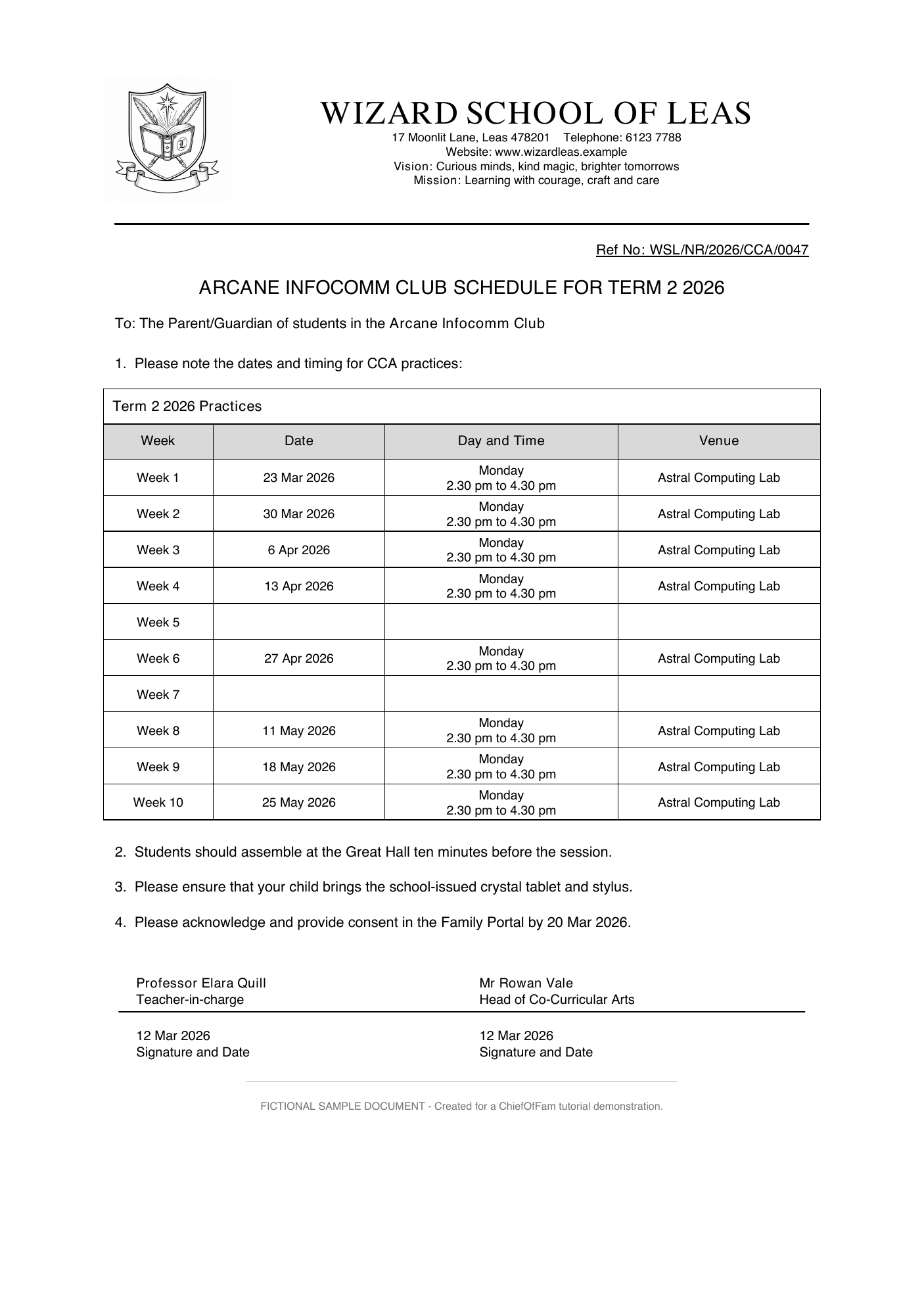
The sample below is a fictional notice for Wizard School of Leas. It is included to show the kind of timetable that looks regular enough to tempt a weekly recurrence, but is not actually regular.
The Arcane Infocomm Club meets on Mondays, yet Week 5 and Week 7 have no day, time or venue. Those are intentionally blank—not missing details to infer. The confirmed dates before, between and after them should become eight individual calendar events; the two blank weeks should not appear in Google Calendar.
Try the Review-First CCA Walkthrough
The interactive example uses the same fictional PDF. Send it to Briefly, see the draft dates, and review them before choosing what reaches the calendar. You can open the PDF at any time to compare it with the draft.
The school PDF is ready to share.
An interactive Briefly walkthrough
Get every CCA date right, without manual entry.
Today
Forward texts, PDFs, chat images, or
snap an image of a physical flyer.
What Briefly Can Read From a School CCA Notice
School information rarely arrives in one tidy format. A class chat may carry a late venue update, while a PDF contains the term timetable and a photo shows a paper slip sent home in a school bag. Briefly is designed for the source you have, including:
- PDFs with date tables, session times and venues.
- Texts or chat messages that announce a change, cancellation or one-off reminder.
- Chat images and screenshots from a school portal or group conversation.
- Photos of physical flyers that need to become something the family can act on.
Briefly can turn one detailed notice into separate sessions and tasks. It can keep a long series together, skip blank weeks, and pull out changes, pickup notes, forms, and items to bring.
That does not mean every printed word becomes an event. A blank row, unreadable time, or “date to be confirmed” note must stay out. The school notice remains the source of truth. Briefly makes a draft that you can inspect.
Briefly reads only the notice you choose to send. It does not need access to your inbox or other chats. Raw source content is never sold or used to train foundation models. Read the Briefly privacy policy for full processing and retention details.
Upload your CCA timetable. Get every session in one place.
Create a free account and add your children. Then upload the timetable and review the sessions, off weeks, venues and notes before they are saved. Free during beta. No credit card.
Create a free accountBriefly only reads what you upload or send.
Why a Weekly Google Calendar Recurrence Is Often the Wrong Starting Point
Creating a Monday or Tuesday recurrence is quick, but it assumes the school has confirmed every occurrence. CCA schedules frequently contain exceptions that a repeating event will quietly ignore:
- A term break or assessment week with no practice.
- A session moved to a different day or time.
- A venue change that changes the pick-up plan.
- A later replacement schedule that changes the final few weeks.
For a notice that lists individual dates, make individual calendar events. This keeps the calendar aligned with the information the school actually gave you and avoids a false event on a no-CCA week.
How to Review the Extracted CCA Dates
Use this short check before choosing Add to calendar:
- Count the confirmed sessions. Match the reviewed list to the actual dated rows in the notice; do not count blank or undated rows as events.
- Check the first, last and interrupted dates. These are the places where an assumed recurrence most often goes wrong.
- Check time and venue together. A correct date still fails the family plan if the dismissal time or pickup location is wrong.
- Confirm the right CCA and child. Remove a row that belongs to another activity or another member of the household.
- Keep the source available. If another caregiver asks why a date is missing, the PDF answers the question more reliably than memory.
The review should take minutes, not another session of manual data entry. If something does not match the source, choose Dismiss or leave it unresolved and wait for a clearer school update.
Add the Reviewed Schedule to Google Calendar
Approve the correct sessions in Briefly. Then subscribe to the separate family feed in Google Calendar. On a computer, select the + beside Other calendars, choose From URL, paste the feed URL, and select Add calendar. (Google Calendar subscription guidance (opens in a new tab))
The Briefly feed is read-only and sits beside your existing calendars. It cannot overwrite your personal events. Other caregivers can subscribe to the same reviewed schedule.
If your school instead provides an official ICS or CSV calendar file, Google can import that file on a computer. Treat that as a separate, school-owned source and avoid importing it alongside the same dates you have already approved through Briefly, or you may create duplicates. (Google Calendar import guidance (opens in a new tab))
When the School Sends a Revised CCA Schedule
Use the newest dated notice as the source of truth. Upload the replacement, review what has changed, and keep only the events that remain confirmed.
| If the notice changes... | Review action |
|---|---|
| A date is cancelled | Remove that session from the reviewed set. |
| The venue or time changes | Correct the matching event before adding it. |
| A new session is confirmed | Add that dated session after checking its details. |
| The change is unclear | Keep it out of the calendar and wait for clarification. |
Avoid keeping two active versions of the same timetable. One current source and one reviewed calendar view are easier for every caregiver to trust.
Make the Calendar Useful After the CCA Dates Are Added
The event title, date and time are the minimum. The calendar becomes more useful when the reviewed source also carries the detail the next caregiver needs to act on: the correct venue, an assembly point, a pickup note, or what the child needs to bring.
Keep the school’s wording when it changes a practical decision. A vague title such as “CCA” does not tell a caregiver whether pickup is at the hall or a different block; a clear reviewed event can. The goal is not to copy every sentence from the notice. It is to preserve the details that prevent a missed session, a wrong pickup, or an avoidable back-and-forth in the family chat.
For a new item from the school, send the actual notice rather than retelling it from memory. That gives the reviewer a source to compare and avoids creating a calendar record from a half-remembered update.
Continue Building a Trustworthy School Calendar
- Choose between a school calendar subscription, file import and a reviewed family calendar.
- Extract dates from a school PDF before adding them to a calendar.
- Turn a photographed school notice into reviewable events.
- Turn a school text message into a calendar event.
- Turn a school WhatsApp broadcast into a reviewed calendar event.
- Plan around CCA selection, commitment and weekly logistics.
Common Questions
Can Google Calendar import a school CCA PDF directly?
No. Google Calendar imports ICS and CSV files on a computer. A school PDF must first become calendar events, and a parent should review the dates against the source. (Google Calendar import guidance (opens in a new tab))
What should I do with a blank week in a CCA schedule?
Treat it as no confirmed session. Do not create an event because the weeks around it use the same day and time.
Can both parents see the CCA schedule?
Yes. Invite the other parent from Settings. Both parents see the same approved sessions, and either parent can add or change one.
Does Briefly add every AI result to my calendar?
No. Briefly makes a draft. You review each session, date, time, place, and note before you choose what to keep.
Does Briefly replace Google Calendar?
No. With an account, Briefly publishes approved items to a separate, read-only feed that you can add beside your other Google Calendar events.
Try Briefly With Your Next CCA Notice
Create a free account, add your children and upload the notice. Briefly reads the full schedule and drafts the sessions, exceptions, places, and useful notes.
You review every item before you keep it. Approved sessions sit on one family calendar that both parents can check, and you can subscribe to it in Google, Apple, or Outlook Calendar.
Upload your next CCA schedule to Briefly.
Upload the schedule, check each session, then choose what to save to your calendar. Free during beta. No credit card.
Create a free accountBriefly only reads what you upload or send.
Sources
- Google: Import events to Google Calendar (opens in a new tab)
- Google: Subscribe to someone else’s calendar (opens in a new tab)
Google Calendar and Briefly steps checked on 15 September 2026. The Wizard School of Leas notice is a fictional demonstration.